1300 760 441
 cs@factoryfast.com.au
Computer Desks and Tables Buyer Guide: Size, Height, Storage and Setup
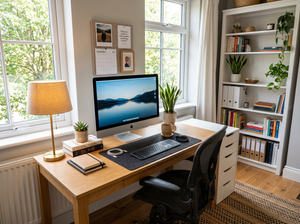

A desk can fit neatly against a wall and still be wrong for the person using it. A surface that is too shallow pushes the monitor uncomfortably close. A model with poorly placed storage can restrict legroom. A large workstation may provide ample equipment space but make it difficult to pull out the chair or move through the room.
The right choice begins with the work being done, the equipment that must fit and the room available around it. This guide explains how to compare computer desks and tables by dimensions, configuration, storage, materials and daily use.
Start with the room rather than the advertised desk size
Product dimensions describe the furniture, not the complete working footprint. The space also needs to accommodate the chair, the user and any nearby doors, drawers or walkways.
Measure the full working zone
Mark the proposed desktop width and depth on the floor. Then place the chair in both its working and pulled-back positions. Check whether the arrangement blocks a wardrobe, power point, window, doorway or frequently used path.
A 120 cm-wide model may fit along a wall, but that does not guarantee there is enough room to sit comfortably. Drawer handles, skirting boards and wall-mounted equipment can also prevent the furniture from sitting exactly where expected.
Measure:
- The available wall width
- The usable floor depth
- The chair’s working and pulled-back positions
- Nearby door and drawer arcs
- Power-point locations
- Skirting-board depth
- Access for assembly and future removal
Planning other pieces at the same time is easier through the broader office furniture collection. This helps prevent a desk, chair and storage cabinet from competing for the same floor area.
Decide what must live on the surface
List permanent equipment before choosing dimensions. Include the monitor base, laptop, keyboard, mouse, speakers, lamp, docking equipment and any items used throughout the day.
Next, separate occasional materials such as notebooks, folders or drawing supplies. These may require temporary working space without needing a permanent position. A compact surface can suit laptop-only work, while a desktop computer, two screens and paperwork usually require greater width and depth.
Do not judge capacity from width alone. A broad but shallow top may provide plenty of sideways room while leaving inadequate distance between the screen and seating position.
Choose the desk type that matches how you work
The main decision is not simply between small and large. Buyers should first choose the correct configuration: fixed-height, storage-equipped, height-adjustable or mobile.
Fixed-height desks suit consistent workstations
A fixed frame is a practical choice when one person uses the same chair and equipment each day. It avoids the need for a powered mechanism and can leave more of the budget available for a larger surface, storage or monitor support.
The 100 × 60 × 72 cm computer desk with an integrated shelf demonstrates how a compact model can still provide useful depth. Its 15 cm-deep under-desk shelf gives books, mail and smaller work items a defined location without adding a separate cabinet.
Before choosing an under-desk shelf, check where it sits relative to your knees and chair arms. Storage only improves the workstation when it does not take away the space needed to sit naturally.
Desks with drawers reduce surface clutter
Integrated drawers work well for stationery, charging leads and small accessories that would otherwise remain on the desktop. They are particularly useful in bedrooms and shared living areas where work equipment needs to be contained after use.
A 120 × 52 × 75 cm white computer desk with two drawers provides a wider working area than the compact shelf design. Each drawer measures 40 × 30 × 8 cm, making the storage better suited to smaller supplies than bulky files.
The tradeoff is depth. A 52 cm surface requires more careful monitor and keyboard placement than a 60 or 70 cm-deep top. It can be an efficient laptop desk or single-screen station, but buyers should map the equipment footprint before treating the extra width as proof of greater usable space.
Height-adjustable desks suit changing positions and shared users
A height-adjustable workstation is most valuable when its adjustment will be used. It can accommodate different seated positions, standing work and people of different heights, but the stated range must suit everyone expected to use it.
The 140 × 70 cm electric standing desk with four memory settings adjusts from 72 to 114.5 cm. Its broad surface suits wider equipment arrangements, while the programmable settings allow preferred heights to be recalled without repeated manual adjustment.
This model supports up to 100 kg when stationary, while its lifting mechanism is rated for 70 kg. That distinction matters: the total weight of monitors, a desktop computer, mounts and accessories must remain within the lower moving-load limit if the desk will be raised and lowered while loaded.
An electric model also needs access to power and enough cable slack for its complete travel range. Cables that look tidy at seated height may become tight when the desktop rises.
Mobile tables suit flexible, light-duty work
A portable table can be useful for laptop work, household administration or a secondary study position. Wheels and manual height adjustment make it easier to move between rooms, but a smaller top will not replace a full workstation for every buyer.
Browse laptop stands and tables when mobility matters more than permanent equipment capacity. Check the base shape as carefully as the tabletop. The legs or feet must fit beneath the bed, sofa or chair beside which the table will be used.
A movable option should also have lockable castors or another reliable method of staying in position. Consider it a focused surface for portable equipment rather than an automatic substitute for a deeper office setup.
Select width, depth and height as separate decisions
Desk measurements work together, but each solves a different problem. Width determines how many items can sit side by side. Depth affects front-to-back equipment placement. Height influences the relationship between the top, chair and user.
Width should reflect the equipment layout
A laptop and notebook can fit on a modest surface. A separate keyboard, desktop computer and multiple screens need more horizontal room, particularly when speakers or work documents must remain accessible.
For dual monitors, sketch the actual screen and stand widths rather than relying on the monitor’s diagonal measurement. If the stands occupy too much surface area, explore monitor mounts, arms and stands that are compatible with the chosen equipment and desktop.
Monitor arms can reclaim space, but they transfer the equipment load to concentrated mounting points. Confirm desktop thickness, edge access, material construction and the mount’s requirements before assuming any clamp will fit.
Depth protects usable working space
Desktop depth is often the overlooked measurement. The surface must hold the screen while leaving room for the keyboard, mouse, wrists and any documents used in front of the monitor.
A 40 cm-deep mobile table can work for a laptop because the screen and keyboard occupy a single footprint. A separate monitor and keyboard typically demand more space. Models around 60 to 70 cm deep provide more flexibility for screen distance, monitor stands and paperwork, although the correct choice still depends on the equipment.
Also inspect anything that reduces effective depth. Raised shelves, monitor risers, rear cable channels and wall clearance can leave less usable surface than the overall measurement suggests.
Desk height must work with the chair
Fixed-height models in the Factory Fast range reviewed for this guide sit around 72 to 75 cm high. A suitable result depends on whether the chair can position the user comfortably at that level.
Check that the chair can move close enough to the front edge and that armrests do not strike the underside. Feet should have a stable position, and the keyboard should not force the shoulders upwards or the wrists into an awkward angle.
With an adjustable model, test the stated minimum and maximum against both seated and standing needs. A broad adjustment range is only useful when it reaches the positions required by the actual user.
Compare materials, frames and load limits
Desk materials influence appearance, maintenance, weight and how accessories can be attached. Engineered wood and MDF tops are common practical choices, while steel or iron frames provide structure beneath the surface.
Inspect the complete frame, not just the tabletop
A thick-looking top does not reveal how stable the finished piece will feel. Look at the leg shape, cross supports, foot width and connection points. Wide feet or a well-supported metal structure can help the surface remain settled during typing and general use.
Floor condition matters too. A desk may rock because the floor is uneven rather than because the frame is weak. Adjustable feet can be useful where a home office has hard flooring or minor level changes.
Product weight also affects ownership. A heavier workstation may remain planted once assembled, but it can be more demanding to carry into position. Check package access through stairs, lifts, doors and hallways before ordering larger furniture.
Read capacity figures in context
Weight capacity must cover all equipment that will remain on the top. Include monitor arms, computers, printers, speakers and stored items, not just the most obvious device.
For powered desks, distinguish between stationary and lifting capacities. If only one figure is supplied, do not assume it applies equally to every operating condition. Keep frequently adjusted surfaces comfortably within their stated limits and distribute equipment according to the product guidance.
Buyers planning a clamp-on keyboard tray or monitor arm should also verify that the rear and side edges are accessible. Frames, drawers and support rails beneath the desktop can obstruct clamps even when the top itself is thick enough.
Decide whether storage belongs in or beside the desk
Built-in storage can make a compact room more efficient, but it also commits part of the furniture to a fixed purpose. The better choice depends on what needs to be stored and how often it is used.
Drawers suit small items used frequently
Shallow drawers are useful for pens, notebooks, charging leads and accessories. They keep visual clutter under control and allow supplies to be reached without leaving the chair.
However, drawers can reduce underside clearance. Check their depth and position against the chair arms, knees and preferred sitting location. A centred drawer may affect legroom differently from storage installed on one side.
Shelves suit books and larger objects
Open shelving makes bulkier items visible and accessible. It can suit study spaces where books and folders move regularly between storage and the work surface.
The main question is whether the shelf occupies leg space or encourages items to accumulate around cables. Measure the remaining open area rather than evaluating the shelf in isolation.
Separate storage can be a better long-term choice when work requirements are likely to change. A simple table with a movable cabinet offers more layout flexibility than a heavily integrated unit, although it requires additional floor space.
Plan cable management before assembly
Cable management is easiest when it is treated as part of the layout rather than a clean-up task. Begin with the location of the wall outlet and identify every device that requires power or a wired connection.
Place power boards where switches remain reachable. Keep excess cable away from castors, chair movement and adjustable mechanisms. If the desk rises, test the wiring at its lowest and highest positions before securing anything permanently.
A cable opening in the top can create a clean route, but it may dictate where the monitor or computer sits. Rear channels provide another option, provided they do not interfere with wall clearance or mounting accessories.
Avoid fastening cables so tightly that equipment cannot be repositioned. A small amount of planned slack is particularly important for monitor arms and height-changing furniture.
Match the workstation to the primary user
A desk intended for full-time computer work should be judged differently from one used for occasional study. Begin with the most demanding regular task rather than the smallest task the surface could technically support.
For laptop-focused work
Prioritise enough room for the laptop, mouse and any documents used at the same time. If the screen will be raised on a stand, allow space for a separate keyboard. A mobile design can work when sessions are short or the workspace must be packed away, while a fixed surface offers a more permanent arrangement.
For a desktop computer or dual monitors
Prioritise width, depth and equipment capacity. Decide whether the computer tower will sit on the top, beneath it or on a separate support. Keeping the tower off the floor may protect access and simplify cleaning, but it uses valuable surface area.
Map monitor stands and speaker positions at full scale. A wide top with adequate depth usually offers greater flexibility than storage-heavy furniture with a smaller clear surface.
For study and mixed household use
Look for a balance between writing space and device space. Integrated drawers or shelving can keep pens, books and chargers nearby, while a neutral finish may help the workstation sit comfortably in a bedroom or living area.
Shared users benefit from an adjustable chair and, where the budget allows, a desktop that can change height. Memory controls are especially practical when the same station is regularly used at different settings.
For gaming and equipment-heavy setups
Start with the total equipment footprint and load rather than styling. Include the monitor arrangement, computer, speakers, controls and charging equipment. Check that drawers, shelves or rear supports do not obstruct chair movement or cable routes.
Allow room for future additions, but do not buy a surface so large that it compromises movement through the room. The best setup provides deliberate capacity rather than unused furniture bulk.
Check assembly and placement before ordering
Most flat-packed desks require assembly. Confirm that the room provides enough clear floor area to lay out the components and that the finished item can be positioned without being turned through an impossible doorway.
Review the expected product weight and consider whether another person will be needed to move or stabilise parts during setup. Protect flooring, identify every fastener before tightening and keep the frame square as the components come together.
Common buying mistakes include:
- Measuring the wall but not the chair clearance
- Choosing width without checking depth
- Ignoring storage intrusion beneath the surface
- Adding monitor clamps without checking edge access
- Loading a powered model beyond its lifting capacity
- Positioning a workstation where cables cannot reach cleanly
- Forgetting the space needed to assemble the furniture
- Buying for occasional tasks instead of the main daily workload
Before placing an order, create a full-size outline of the proposed desktop with removable tape or sheets of paper, then place cardboard templates for the monitor, laptop and keyboard inside it. This ten-minute mock-up exposes crowding that product dimensions alone cannot show and gives you a reliable final check before committing to a particular desk.
Frequently Asked Questions
What depth should a computer desk be for a monitor?
A depth of about 60 to 70 cm gives many monitor-and-keyboard setups useful front-to-back space. The exact requirement depends on the monitor stand, screen size and whether documents sit in front of the keyboard. Shallower surfaces may suit laptops or compact screens, but buyers should map the complete equipment footprint before choosing. A monitor arm may free surface area if the desktop supports its mounting method.
Can a standing desk hold two monitors?
A standing desk can support two monitors when its desktop dimensions and moving-load capacity are suitable for the complete setup. Add the weight of both screens, their stands or mounting arm, the computer and all other equipment. Check the lifting capacity rather than relying only on the stationary rating. Cable length and routing must also accommodate the desk at both its lowest and highest positions.
Is a computer desk with drawers better than one with shelves?
Drawers are usually better for small items such as stationery, chargers and cables, while shelves suit books, files and objects that benefit from open access. Neither configuration is automatically superior. Check how the storage affects knee clearance and chair position. A desk with separate storage may be more adaptable when room layouts or working requirements are likely to change.
How much room should I leave behind an office chair?
Leave enough space to sit down, pull the chair back and move through the room without striking nearby furniture. The required distance varies with chair size and circulation needs, so measure the actual chair rather than using a generic estimate. Test its working and fully pulled-back positions. Include any drawers, doors or cupboards that open into the same area.
Can a mobile laptop table replace a full computer desk?
A mobile laptop table can replace a full desk for light, portable work when the laptop and essential accessories fit comfortably. Its smaller surface may be restrictive for separate monitors, large keyboards or extensive paperwork. Check tabletop dimensions, height range, base clearance and wheel locks. For long sessions or equipment-heavy work, a deeper fixed or height-adjustable workstation usually provides more layout flexibility.
What is the most common mistake when choosing a home office desk?
A common mistake is checking whether the furniture fits the wall without testing whether the entire workstation functions in the room. Buyers should account for the chair, user, monitor depth, cables, storage access and surrounding walkways. Marking the dimensions on the floor and creating templates for permanent equipment makes it easier to identify crowding before the desk is ordered.
 Tags:
Tags: